
How to build a multi-line autodialer in C# with Ozeki VoIP SIP SDK
 |
Download: | multi-sip-account.zip |
This guide introduces how to develop an autodialer softphone which is able to use multiple sip accounts. With the help of this guide, you can select phone lines for specified phone numbers (or for any information you can set). To fully understand this guide, you might have to visit the Autodialer article first, since this guide continues to develop that.

Why do we need a multi-line autodialer?
A single-account autodialer can only place calls through one SIP account, so every outgoing call costs and routes the same way regardless of the destination. Many deployments have access to several SIP accounts or carriers with different rates or regional strengths, and picking the wrong one for a given number wastes money or picks a worse route. A multi-line autodialer solves this by registering multiple SIP accounts up front and letting each outgoing call select the phone line that best fits its destination, such as always routing UK numbers through a UK-based account.

What is a multi-line autodialer?
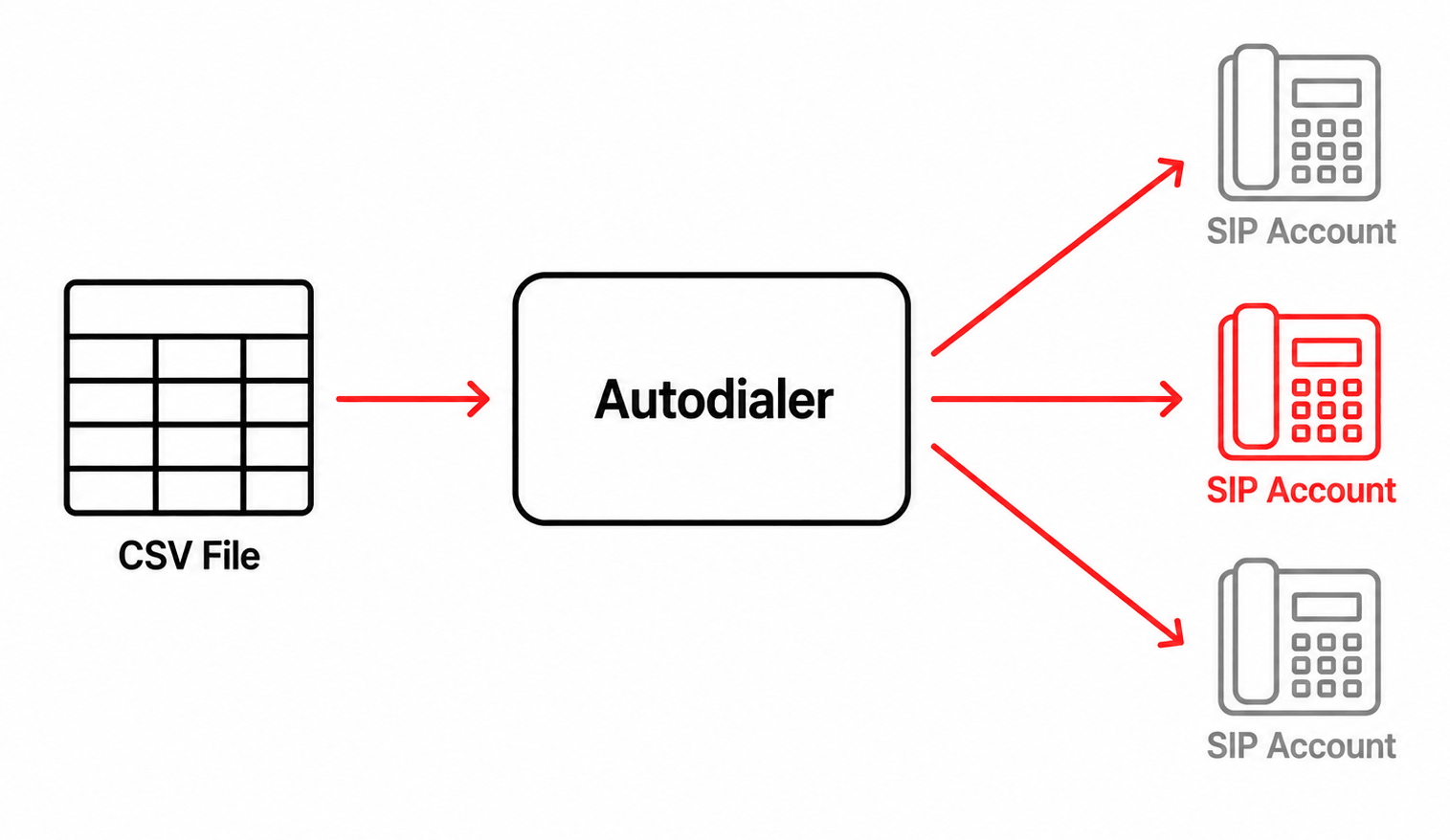
An autodialer is software that automatically dials telephone numbers and, once a call is answered, either plays a recorded message or connects the caller to a live person. A multi-line autodialer extends this by registering with multiple SIP accounts across one or more PBXes, so each outgoing call can go out over a specific phone line: for example, always routing through the cheapest available account.
How does it work?
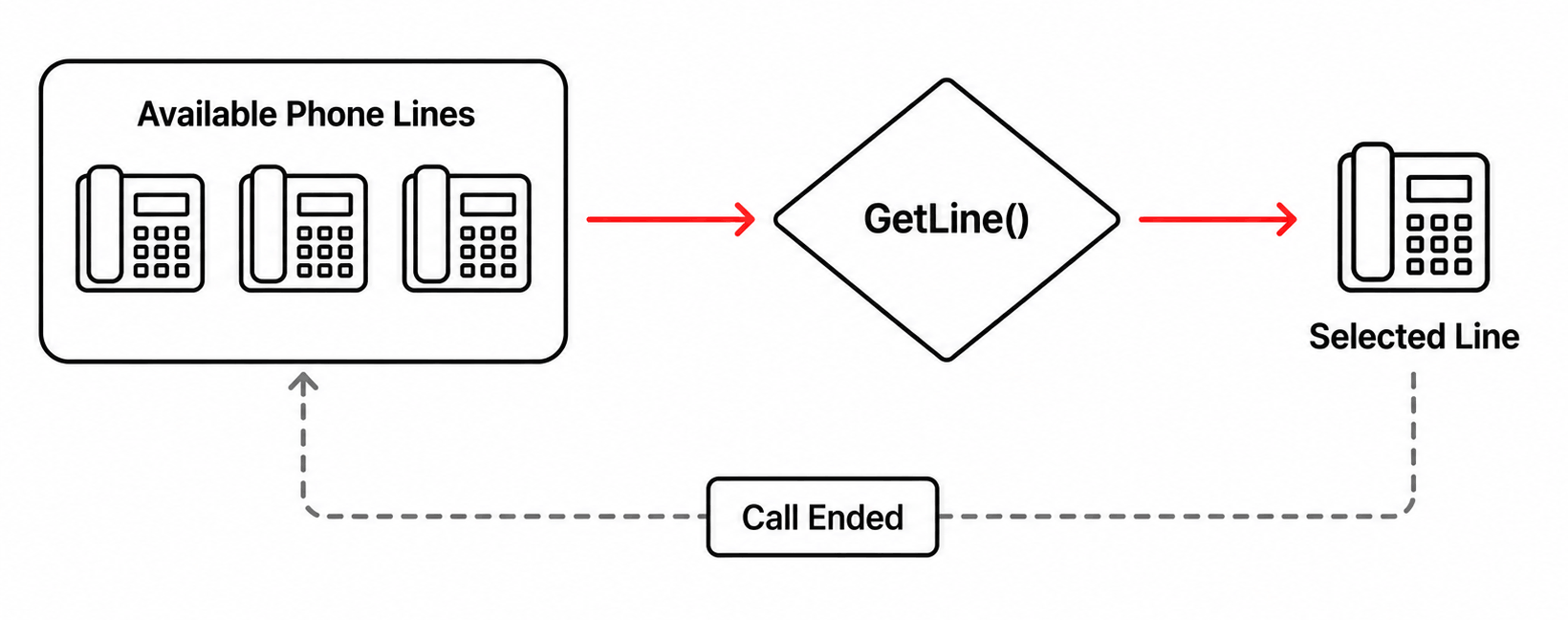
Every SIP account that registers successfully adds its phone line to a shared list
of available lines in the Softphone class. When the Autodialer is about to place a
call, it calls GetLine(), which picks a phone line for that call,
by default the first free one, or a specific account chosen by username and domain
host if a dial plan rule matches. The selected line is removed from the available
list for the duration of the call and returned to it once the call ends.
How to build and run your solution
Download the project, extract it to a folder of your choice, and open the solution file in Visual Studio. Before running anything, locate the example CSV file included with the project and open it to see how each line pairs a phone number with a message, and take note of where the file lives relative to the project so you can point to it later or provide your own in the same format, then build the solution and run the console application.
How to test the solution
Enter your first SIP account's details and wait for registration to succeed. Press Y to add another SIP account and repeat, or press any other key once you're done to move on. Set the maximum number of simultaneous calls, then press Enter to use the default example CSV file or provide your own, and confirm that calls go out rotating across the registered phone lines.
Key source code
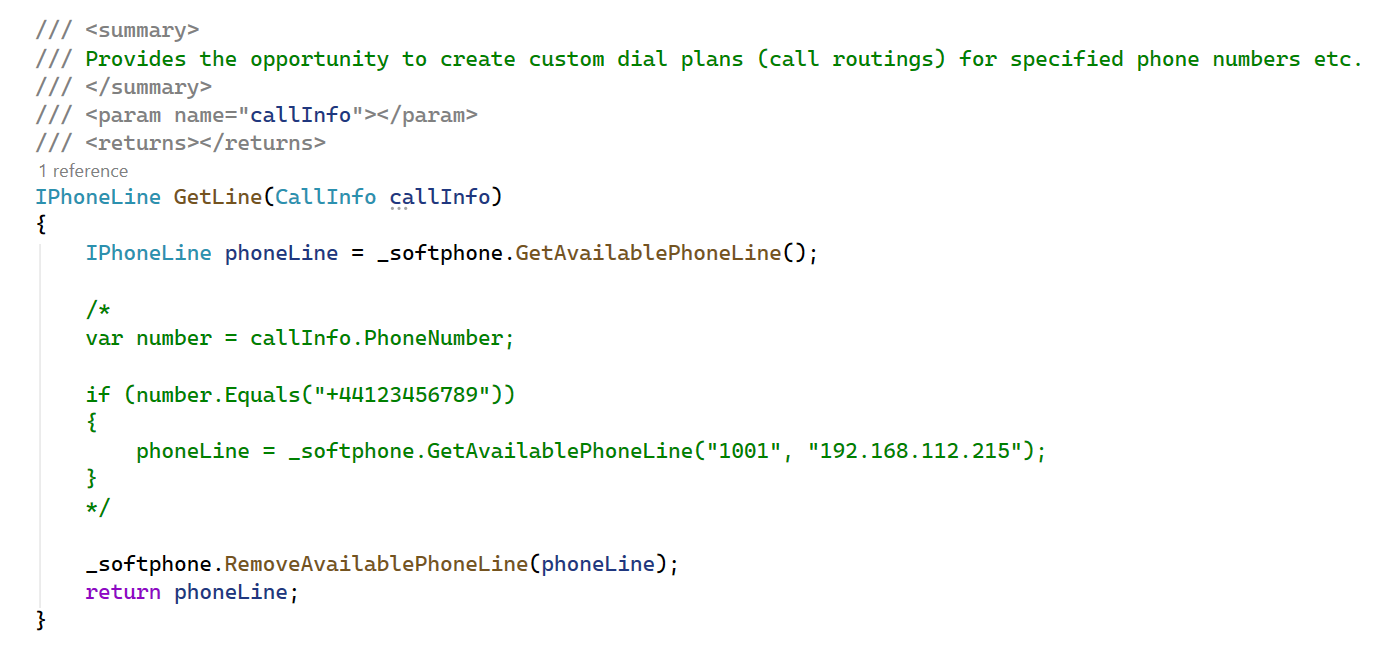
The core of this example is GetLine() in AutoDialer.cs.
By default it just takes the first available phone line, but the commented-out
block shows how to route a specific phone number through a specific SIP account by
username and domain host instead. This is the method to extend if you want to build
your own dial plans or call routing rules.
Capture SIP traffic with Wireshark
Start a Wireshark capture on the network interface used by the softphone, then run
the test above with at least two registered SIP accounts. Apply a
sip display filter and compare the
From header of each outgoing INVITE, confirming that calls are actually
going out under different SIP accounts rather than all sharing the same one.
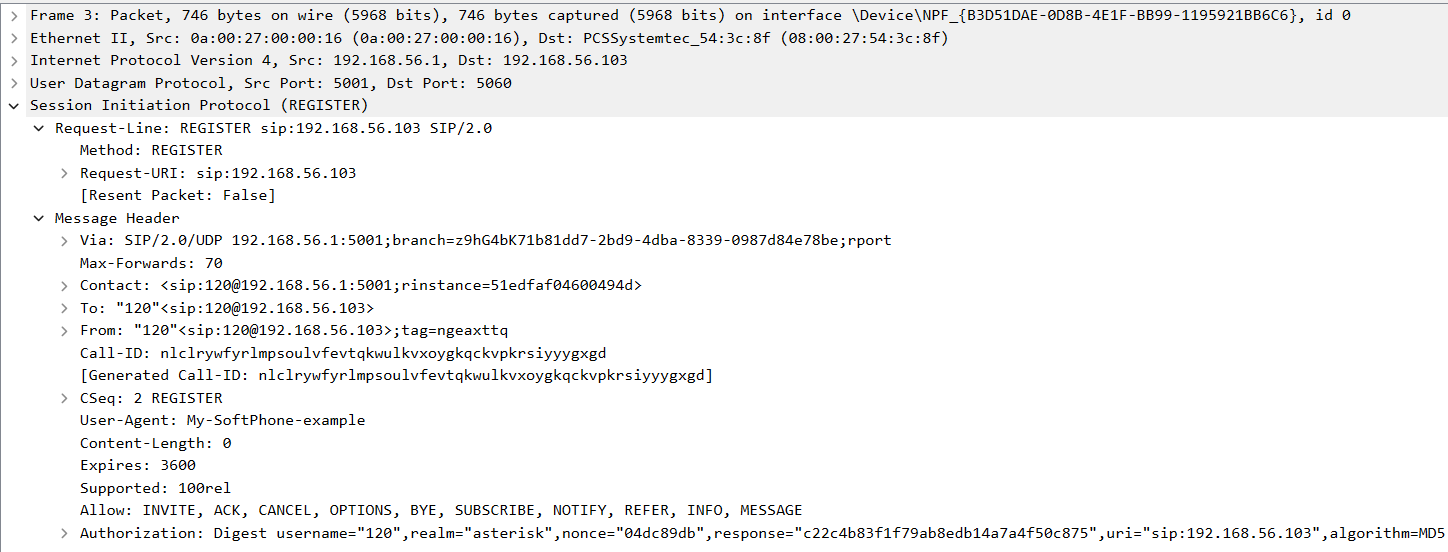
What is a SIP REGISTER PDU for the first account
This is the REGISTER request sent for the first SIP account, "120", carrying its own
From header, Contact URI, and unique Call-ID.
Each registered account keeps its own independent dialog with the PBX, which is what
lets the Autodialer later pick a specific one to place a call through.
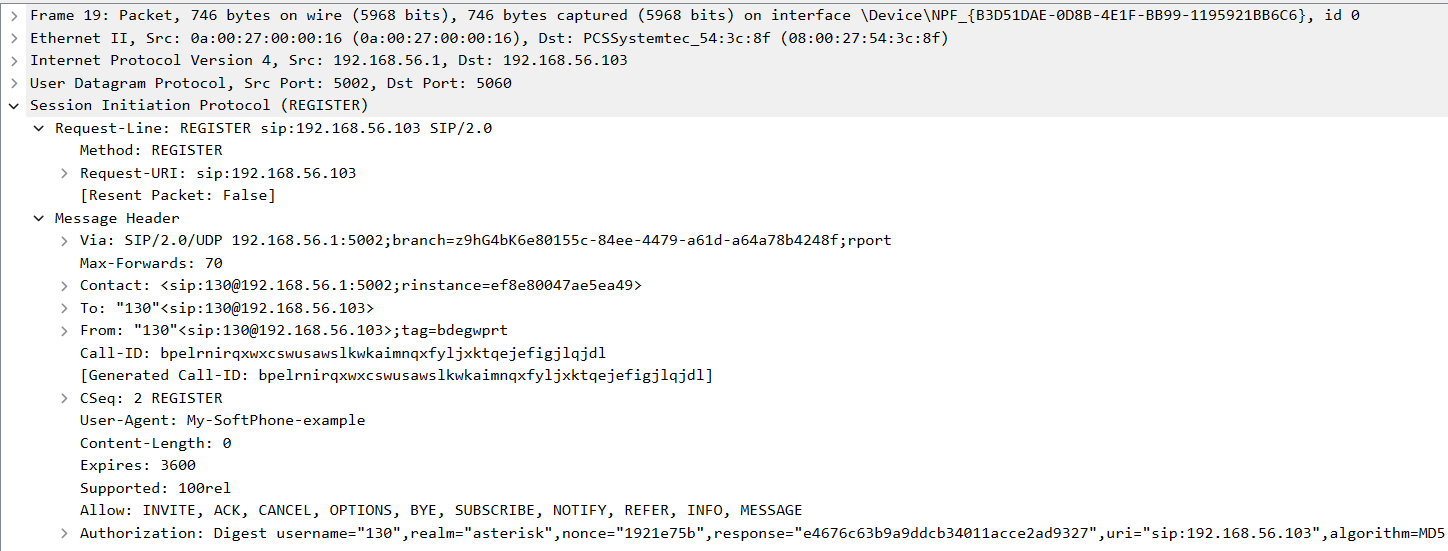
What is a SIP REGISTER PDU for the second account
This is the REGISTER request sent for the second SIP account, "130", sent from a
different source port and carrying a completely different Call-ID from
the first account's REGISTER. Capturing both side by side confirms the softphone
registered two independent phone lines rather than reusing the same one.
Debug SIP events in Asterisk
Connect to the Asterisk console and enable SIP debug output, then run the
multi-line autodialer against the example CSV file. Watch each outgoing call
register and dial through its selected account, then run
core show channels to see two calls active at once, each going out
through a different SIP account.
What knowledge would you need?
This example assumes you're already familiar with SIP registration, media handlers, making and accepting calls, parallel call management, multiple phone lines, and the basic Autodialer, covered in the earlier tutorials linked below.
- SIP registration
- Managing media handlers
- Making and accepting calls
- Parallel call management
- Multiple phone lines
- How to build an Autodialer
This example uses five classes
- Softphone.cs — registers multiple SIP accounts and manages the list of available phone lines.
- Program.cs — asks for SIP accounts, the concurrency limit, and the CSV path.
- CallInfo.cs — represents one CSV row as a phone number and message pair.
- CallHandler.cs — dials one CallInfo's number over a specific phone line.
- Autodialer.cs — creates a CallHandler per CallInfo and selects which phone line it uses.
This guide continues developing the Autodialer example, so only the new steps and differences from that simpler version are covered below.
What is Softphone.cs used for?
The autodialer's softphone class is able to register to a pbx, provides information
about the phone line's state, and also creates call objects, when needed.
Please note that, the ReadRegisterInfos() method has been moved here from the Program.cs
file (for the purpose to be able to be called from different parts of the source code).
The class handles two lists: the list of successfully registered SIP Accounts, and the
list of available phone lines (which are not being used at the moment). Please note that, if you would like
to make calls through a SIP account, you will have to select the account's phone line at the
call object's creation.
The class also provides methods to manage the lists:
-
_registeredSipAccounts: the list of successfully registered SIP accounts.
The following methods are available to manage it:
- GetSipAccountCount(): returns the amount of successfully registered SIP accounts.
- ListSipAccounts(): lists public information about the successfully registered SIP accounts.
-
_availablePhoneLines: the list of available phone lines (which are not being
used at the moment). The following methods are available to manage this list:
- GetAvailablePhoneLineCount(): returns the amount of available phone lines. Please note that, if you would like to get the amount of every phone line regardless of being used or not at the moment, you can ask for the amount of successfully registered sip accounts (since every phone line has been created to a single SIP account).
- GetAvailablePhoneLine(): returns the first available phone line from the list.
-
GetAvailablePhoneLine(string userName, string domainHost): returns the phone line
selected by the SIP account's username and domain host. If the list doesn't contain
the selected phone line, it returns the first available one.
Please note that, you have to provide the domain host at the selection to identify a unique phone line (and sip account), since there could be more SIP accounts registered to different PBXes with the same username. - ListAvailablePhoneLines(): lists the available phone lines.
- AddAvailablePhoneLine(IPhoneLine phoneLine): adds the phone line to the available phone lines' list.
- RemoveAvailablePhoneLine(IPhoneLine phoneLine): removes the phone line from the available phone lines' list.
public IPhoneLine GetAvailablePhoneLine(string userName, string domainHost)
{
    lock (_sync)
    {
        foreach (var phoneLine in _availablePhoneLines)
        {
            if (phoneLine.SIPAccount.UserName.Equals(userName) &&
                phoneLine.SIPAccount.DomainServerHost.Equals(domainHost))
            {
                return phoneLine;
            }
        }
        Console.WriteLine("No available phone line with those attributes! First available phone line is being selected.");
        return _availablePhoneLines[0];
    }
}
To learn more about the original Autodialer Softphone class, please visit the Autodialer article.
What is Program.cs used for?
The Program class uses a Softphone instance, handles the phone line's state,
asks the user about sip account information, the number of calls that can be made simultaneously
and a .csv file path, reads, parses the given file and creates CallInfo
objects to represent the file's lines.
The class is able to receive more SIP accounts from the user.
Please note that, the methods which ask the user about SIP account information have been moved to the Softphone class. The methods have been set to be public, so the Program class can use them as it did before, regardless of where those are being stored.
Even if you set larger number for possible simultaneously outgoing calls, the application will
not manage more calls at a time than the maximum number of available phone lines.
When all of the previous steps are done, it calls the Autodialer class's Start() method.
To learn more about the original Autodialer Program class, please visit the Autodialer article.
What is CallInfo.cs used for?
Each CallInfo object represents a line within the csv file, which is being used as a complex value, as it stores a phone number and a message which is being played into the accepted call with the help of the text-to-speech feature. CallHandler objects will be created for all of the CallInfo objects, to manage the calls separately.
What is CallHandler.cs used for?
The softphone can handle multiple calls simultaneously, and each of those is being handled by a CallHandler instance, set by a CallInfo object. Since a CallInfo object stores a phone number, the call will be created to that number, and if the call is being accepted by the client, the CallInfo object's message value is being converted to voice with the text-to-speech feature, and then being played into the call.
There is a change within the Start() method of the class, since it waits for a phoneLine object from now for the purpose to make the phone line selectable.
To learn more about the original Autodialer CallHandler class, please visit the Autodialer article.
What is Autodialer.cs used for?
The Autodialer class creates the CallHandler instances from CallInfo and phone line objects,
by calling their Start() method.
The class also listens to the CallHandler class's events, which indicate when
a client call has been accepted or ended.
There is a new method within the class, called GetLine(), which waits for a CallInfo
object as a parameter, and returns a phone line.
You can set here dial plans and routing rules for the selected CallInfo attributes.
Please note that, you can expand the functionality of this method, or you can
create similar ones for similar functions, if you would like to manage other extension,
user, phone line, etc. attributes as well.
The method with default usage, which simply calls the client via the first available phone line:
IPhoneLine GetLine(CallInfo callInfo)
{
    IPhoneLine phoneLine = _softphone.GetAvailablePhoneLine();

    _softphone.RemoveAvailablePhoneLine(phoneLine);
    return phoneLine;
}
The edited method, which if the dialed number is "+44123456789", then it tries to call it via the SIP Account, selected by the "1001" username and "192.168.112.215" domain host:
IPhoneLine GetLine(CallInfo callInfo)
{
    IPhoneLine phoneLine = _softphone.GetAvailablePhoneLine();
	var number = callInfo.PhoneNumber;

    if (number.Equals("+44123456789"))
    {
        phoneLine = _softphone.GetAvailablePhoneLine("1001", "192.168.112.215");
    }

    _softphone.RemoveAvailablePhoneLine(phoneLine);
    return phoneLine;
}
You can even write string parser methods for the purpose to be able to create call routings for phone numbers, which start or end with specified numbers etc.
To learn more about the original Autodialer class, please visit the Autodialer article.
Conclusion
From this example you could learn how to create multi-line autodialer, which is a softphone application
and is able to register with multiple SIP accounts, to read and process csv files and make calls simultaneously to the
destinations, via the selected phone lines.
With this knowledge, you are able to create autodialer softphones, which can select phone lines
at the call object's creation for the purpose to make calls on the cheapest lines (for example).
If you have any questions or need assistance, please contact us at info@voip-sip-sdk.com