
How to create a call assistant in C# with Ozeki VoIP SIP SDK
 |
Download: | call-assistant.zip |
Ozeki VoIP SIP SDK provides professional technology to create a call assistant application. With the help of the call assistant, work is much easier for the agents who receive the calls. They can see who the caller is and they can answer, reject, hold/unhold or transfer the incoming calls.
Why do we need a call assistant?
A plain softphone tells an agent that a call is coming in, but nothing about who is calling, so every conversation starts with the agent asking questions they might already have answers to on file. Looking up a caller's details manually in a separate system while the phone is ringing wastes the first moments of the call and looks unprofessional to the customer. A call assistant solves this by matching the caller's number against a database automatically, so the agent already sees the caller's name, country, and notes before they say hello.

What is a call assistant?
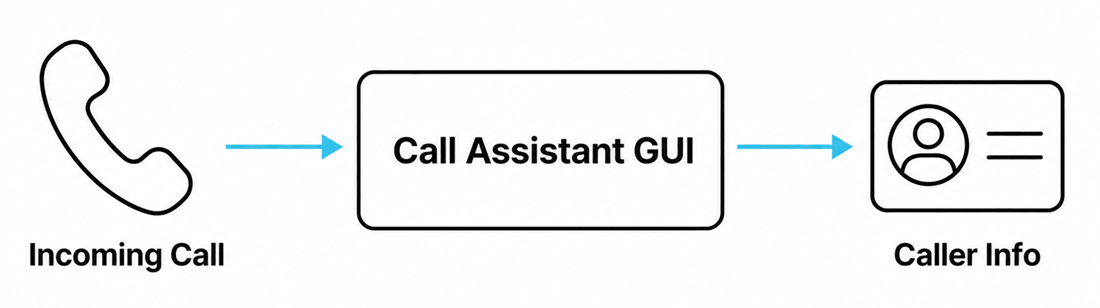
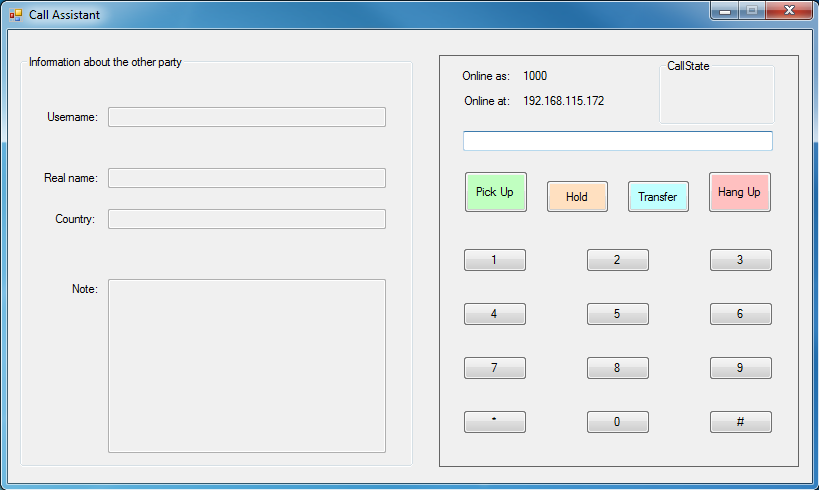
A call assistant is a softphone with a graphical interface that helps agents handle calls more efficiently, rather than a single tool. This example provides a Windows Forms application that can make and receive calls, checks each incoming caller against a local database and displays their username, full name, country, and any notes on file, and gives the agent controls to answer, reject, hold/unhold, and transfer the call.
How does it work?
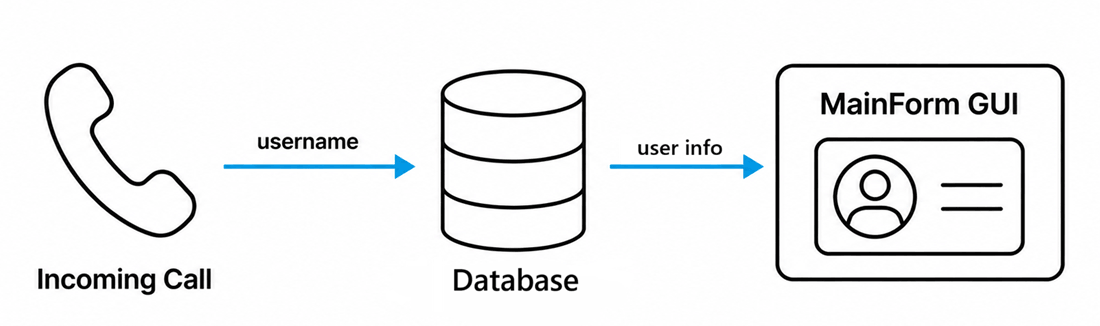
When a call comes in, MainForm reads the caller's username and passes it to DatabaseManager's GetOtherPartyInfos method, which runs a SQL SELECT against the local UserInfos table. If a matching row is found, its real name, country, and note are wrapped in a UserInfo object and displayed on the form; if no match exists, the form shows "N/A" in each field instead of leaving the agent with no information at all. The rest of the call uses the same SDK call-control methods as the console examples, just wired to GUI buttons.
How to build and run your solution
Download the project, extract the archive, and open the solution in Visual Studio.
The UserInfoContainer.mdf database is already included, so start LocalDB with
sqllocaldb create MSSQLLocalDB and confirm it's running with
sqllocaldb info MSSQLLocalDB. Open FormCallAssistant and update the
SIPAccount line with your own account details and PBX address,
then build and run the application to launch the call assistant's graphical interface.
How to test the solution
Place a call to the assistant from a number that matches a test user already in the UserInfos table, and confirm the caller's information appears on the form as soon as the call arrives, then try calling from a number that isn't in the database and confirm the fields show "N/A" instead. Use the answer, reject, hold/unhold, and transfer buttons to confirm each control works as expected.
Key source code
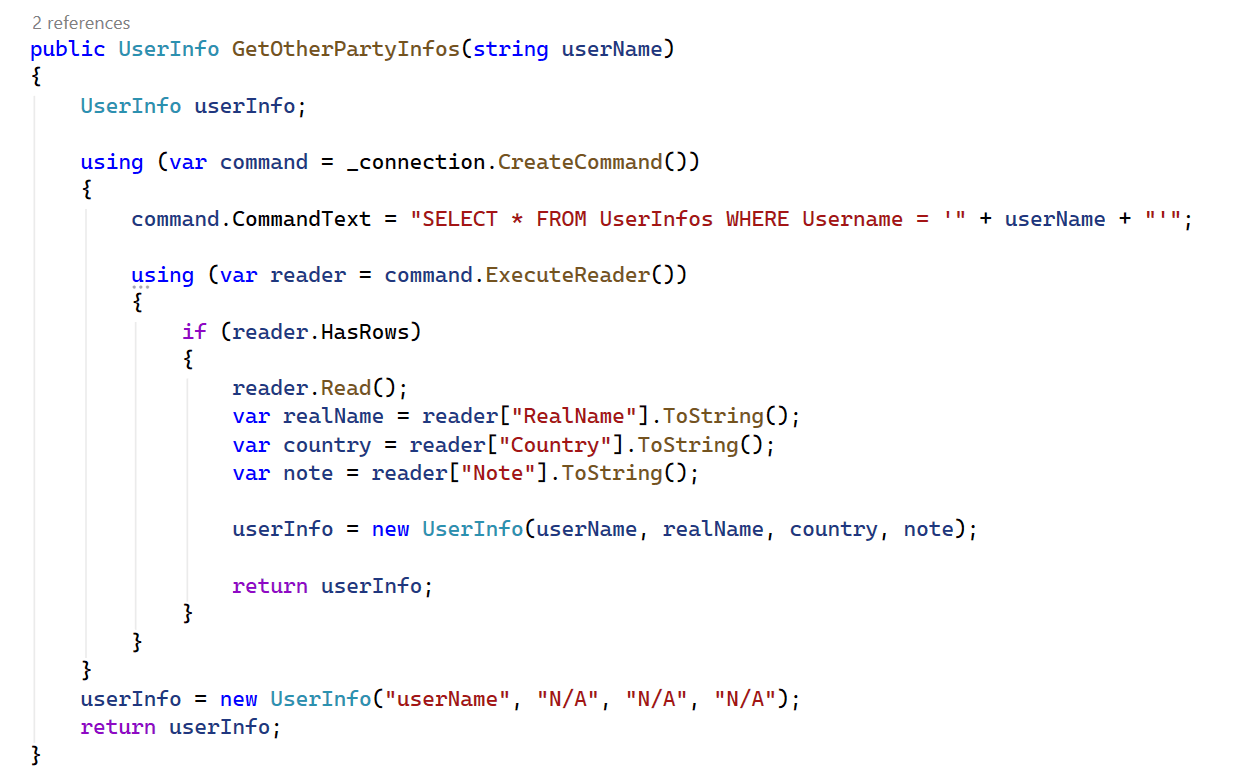
The core of this example is DatabaseManager's GetOtherPartyInfos method. It runs a SQL SELECT against the UserInfos table for the given username, and if a matching row is found, wraps the real name, country, and note into a UserInfo object and returns it. If no row matches, it returns a UserInfo filled with "N/A" placeholders instead of leaving the caller unidentified, so the agent always sees something on screen.
Capture SIP traffic with Wireshark
Start a Wireshark capture on the network interface used by the call assistant, then
place a test call to it and answer it from the form. Apply a
sip display filter and locate the INVITE addressed to the call
assistant's number, its 200 OK response once the call is answered, and the BYE that
ends the call, confirming the GUI's answer and hang-up buttons trigger the expected
SIP messages.
Debug SIP events in Asterisk
Connect to the Asterisk console and enable SIP debug output, then place the same test call to the call assistant. Watch the registration and the INVITE arrive, and confirm the call state changes reported by Asterisk line up with what the GUI shows as you answer, hold, and end the call.
What knowledge would you need?
This example assumes you're already familiar with SIP registration, media handlers, making and accepting calls, and call control, covered in the earlier tutorials linked below.
This example uses four classes
- UserInfo.cs — a simple data object holding one user's username, real name, country, and note.
- DatabaseManager.cs — opens the local database connection and looks up caller information.
- MainForm.cs — the Windows Forms GUI, SIP registration, and all call control logic.
- Program.cs — the application's entry point.
The example ships with a local UserInfoContainer.mdf database, built
with SQL Server LocalDB, storing each user's username, real name, country, and note
in a UserInfos table, however you can swap in any other database by changing the connection
string and query in DatabaseManager.
UserInfo.cs
UserInfo is a plain data object that stores one caller's details as read-only properties, set once through its constructor:
class UserInfo
{
    public UserInfo(string userName, string realName, string country, string note)
    {
        UserName = userName;
        RealName = realName;
        Country = country;
        Note = note;
    }

    public string UserName { get; private set; }
    public string RealName { get; private set; }
    public string Country { get; private set; }
    public string Note { get; private set; }
}
DatabaseManager.cs
DatabaseManager reads its connection string from the MyConnectionString
entry in App.config, builds a SqlConnection from it, and opens that
connection in its constructor. It also calls TestAdder(), which inserts
a handful of test users into the database via a simple SQL INSERT, so the example
has data to look up right away:
string _connectionString;
SqlConnection _connection;

public DatabaseManager()
{
    _connectionString = ConfigurationManager.ConnectionStrings["MyConnectionString"].ToString();
    _connection = new SqlConnection(_connectionString);

    OpenConnection();
    TestAdder();
}

void OpenConnection()
{
    try
    {
        _connection.Open();
    }
    catch (Exception ex)
    {
        MessageBox.Show(ex.Message);
    }
}
MainForm.cs and Program.cs
MainForm contains the Windows Forms GUI shown below, along with SIP registration and every call control feature: answer, reject, hold/unhold and transfer implemented the same way as in the console examples linked under "What knowledge would you need?", just wired to buttons instead of console prompts. Program.cs is the application's entry point and simply starts MainForm.
There's also a detailed tutorial video series on building a softphone with a GUI from scratch, starting with SIP registration.
Conclusion
This tutorial covered building a call assistant that matches incoming callers against a local database and displays their name, country, and notes on a Windows Forms interface, alongside standard answer, reject, hold/unhold, and transfer controls. With this foundation, you can swap in any other data source, such as a CRM or support ticket system, to give agents even richer context the moment a call arrives.