
How to enable and disable different codecs
 |
Download: | codecs-handler.zip |
This tutorial explains how to enable and disable individual codecs in a C# softphone built with Ozeki VoIP SIP SDK. You will learn how to read the softphone's available codec list, enable only the ones you select, and confirm the result in Wireshark. The example builds on the previous "Making and accepting calls" tutorial, adding codec negotiation control on top of it.

Why do we need codec management?
Not every SIP endpoint supports the same codecs, and not every network connection can afford the same bandwidth. A call only succeeds if both sides agree on at least one common codec during SIP negotiation, so offering every codec by default risks slow negotiation or landing on a codec that wastes bandwidth on a constrained link. Controlling which codecs are enabled lets a softphone match its behavior to the deployment, such as prioritizing a low-bandwidth codec over a cellular network.

What is a codec?
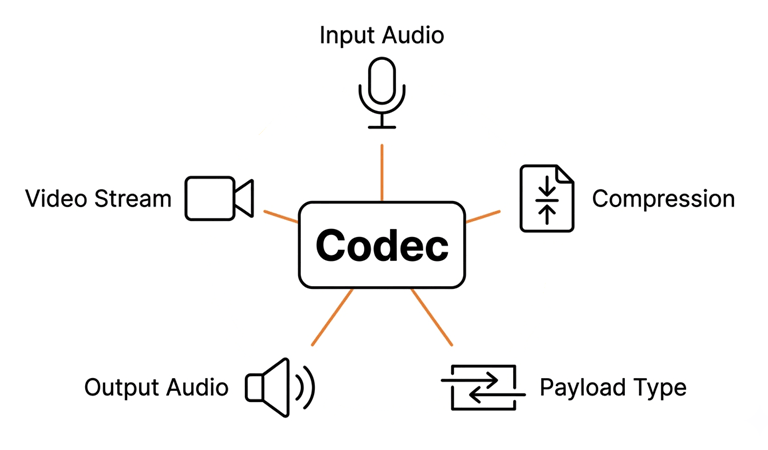
A codec (coder-decoder) is an algorithm that compresses raw audio or video data for transmission and decompresses it back into playable media on the receiving end. In VoIP, each codec trades off audio quality, bandwidth, and CPU load differently: G.711 sends near-uncompressed audio at the highest bandwidth cost, while G.729 compresses more aggressively to save bandwidth.
How does it work?
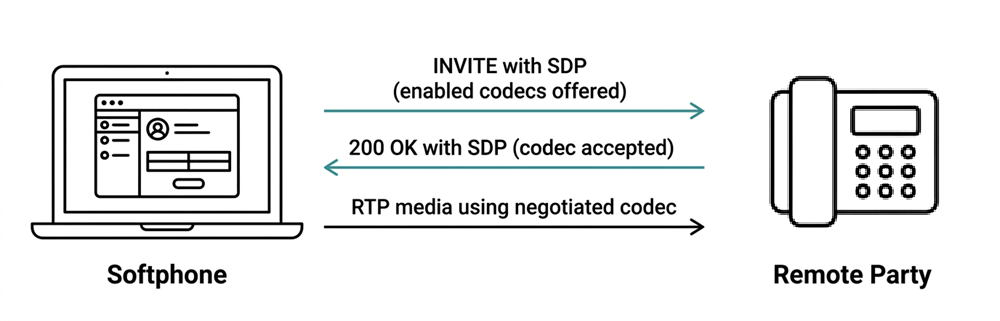
When the softphone starts, it queries the SIP stack for every codec it supports and exposes them as a list of CodecInfo objects, each carrying a payload type and an enabled/disabled state. Disabling a codec removes it from the SDP offer sent in the INVITE, while enabling one adds it back. Only the codecs left enabled at call start are offered, and the codec both sides agree on carries the actual RTP stream.
How to build and run your solution
Download the project, extract the archive, open the solution in Visual Studio, then build and run the console application. Complete these steps before continuing to the testing section, where you will configure the SIP account and verify codec negotiation.
How to test the solution
Configure the SIP account by entering the required registration details, then wait for the application to register successfully. When the available codecs are listed, enter the payload type numbers of the codecs you want to enable, and place a test call to verify that the selected codec is negotiated correctly.
Capture SIP traffic with Wireshark
Start a Wireshark capture on the network interface used by the softphone, then place a
test call. Apply a display filter such as sip to isolate the SIP
signaling packets. Inspect the SDP body of the INVITE request and the 200 OK response
to confirm that only the enabled codec payload types are offered and that the remote
party selects one of them during negotiation.
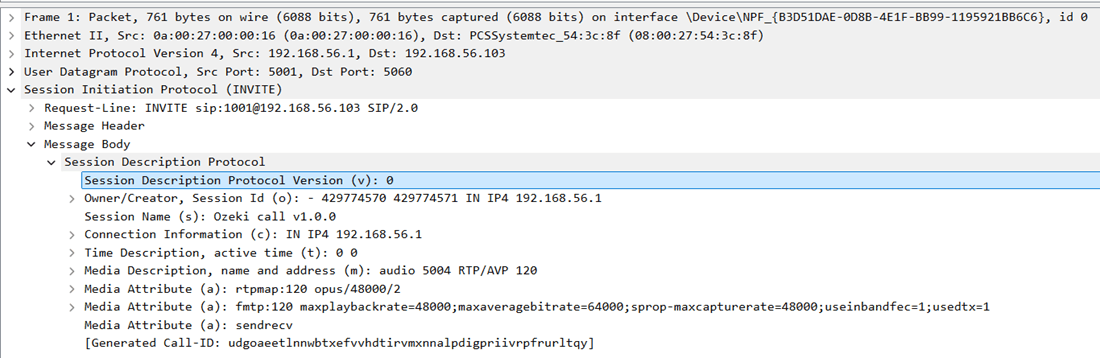
What is a SIP INVITE with SDP Codec Offer PDU
A SIP INVITE with an SDP codec offer is the message a softphone sends to start a
call, carrying the list of codecs it currently has enabled in the SDP message body.
The key fields are the m=audio line, which lists the offered payload
type numbers, and the matching a=rtpmap lines, which map each payload
type to a codec name and clock rate.
What is a SIP Codec Response PDU
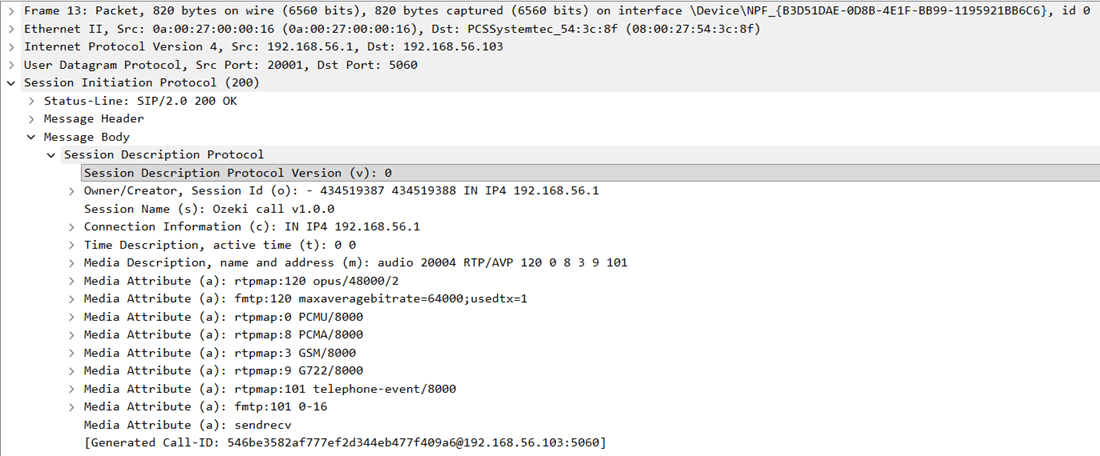
A SIP 200 OK with an SDP codec answer is the PBX's response to the INVITE, confirming
which codec it accepted out of the ones offered. Its m=audio line
carries only the single negotiated payload type, and the accompanying
a=rtpmap line names that codec directly.
Debug SIP events in Asterisk
Connect to the Asterisk console, enable SIP debugging, then place a test call from the softphone. Compare the SIP messages reported by Asterisk with the INVITE captured in Wireshark to verify that the PBX receives the expected codec offer and accepts the selected codec without transcoding.
Key source code
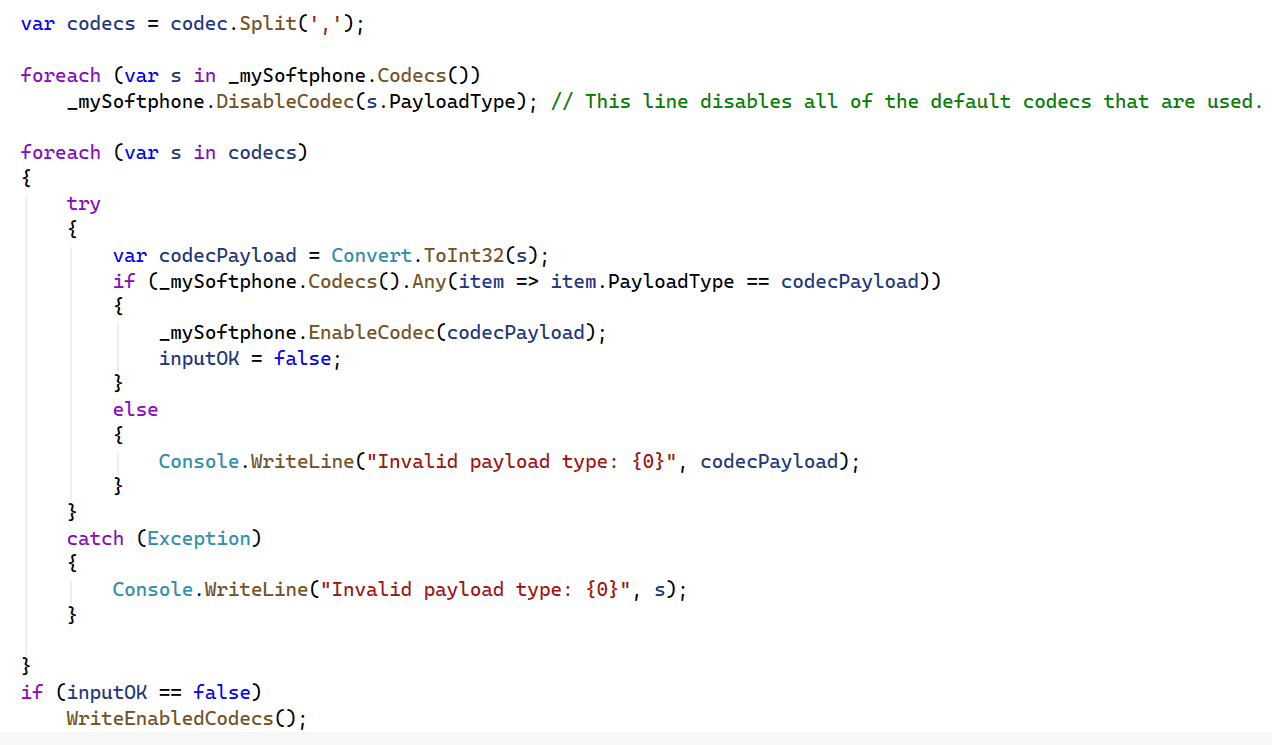
The core of this example is the codec selection block in StartExample().
It disables every codec the softphone reports, then re-enables only the payload types
the user typed. This disable-all-then-enable-selected pattern guarantees the final
enabled set exactly matches the user's input, with no leftover default codecs active.
Source code analysis
To understand the source code, the softphone's functions and their usage, we need to discuss the details.
Softphone.cs
This class declares, defines, and initializes a softphone, and exposes the events and functions needed to register to a PBX and manage calls. This example's softphone does not accept incoming calls, since that logic is intentionally left out to keep the codec-focused code easier to follow.
Access to the codecs
The softphone object exposes the full list of available codecs through its
Codecs() method, which returns a CodecInfo for each one.
public IEnumerable<CodecInfo> Codecs()
{
    return _softphone.Codecs;
}
Enabling and disabling codecs
Disabling a given codec requires calling DisableCodec() with its payload
type as the parameter. Enabling a codec works the same way, through
EnableCodec().
public void EnableCodec(int codec)
{
    _softphone.EnableCodec(codec);
}

public void DisableCodec(int codec)
{
    _softphone.DisableCodec(codec);
}
Program.cs
This class asks the user which codecs to use. If no input is given, the SDK's default codec settings apply. The application lists the available codecs, reads the desired payload types (or accepts the default), shows the resulting enabled codec list, and then starts a call using the selected codecs.
WriteCodecs()This method prints every available codec's payload type and name to the console, grouped separately by audio and video media type.
foreach (var codecInfo in _mySoftphone.Codecs())
{
    if (codecInfo.MediaType == CodecMediaType.Audio)
        Console.WriteLine("{0,3} {1}", codecInfo.PayloadType, codecInfo.CodecName);
}
This method prints only the codecs currently marked as enabled, so the user can confirm the result of their selection before a call is placed.
foreach (var codecInfo in _mySoftphone.Codecs())
{
    if (codecInfo.Enabled)
        Console.WriteLine("{0,3} {1}", codecInfo.PayloadType, codecInfo.CodecName);
}
This method reads the comma-separated payload types from the user, disables every codec, then re-enables only the ones the user selected. See the Key source code section above for the full listing and explanation of this logic.
_mySoftphone.EnableCodec(codecPayload);
A helper method for reading console input, optionally re-prompting the user until a non-empty value is entered when the field is required.
string input = Console.ReadLine();
if (!readWhileEmpty) return input;
Conclusion
This tutorial covered reading a softphone's available codec list and using
EnableCodec() and DisableCodec() to control which codecs
are offered during SIP negotiation, then verified the result by inspecting SDP
contents in Wireshark and cross-checking against Asterisk's SIP debug log.