Ozeki VoIP SDK - Product Guide
Developers Guide
How to accept an incoming call (and record a .wav) with Ozeki VoIP SIP SDK
Explanation
Prerequisities
![]() |
Download: | SoftphoneExample.zip |
Ozeki VoIP SIP SDK makes it possible to accept a voice call and record .wav audio files with your softphone application. It is very easy when you use the support tools and methods provided by Ozeki SIP SDK.
Introduction
Communication is the base of our everyday life and work. Making business and personal connections is the most essential step on the way to success. The importance of effective communication even grew further with the possibilities of the Internet (Figure 1).
Figure 1 - Voice calling is the primary goal of softphone solutions
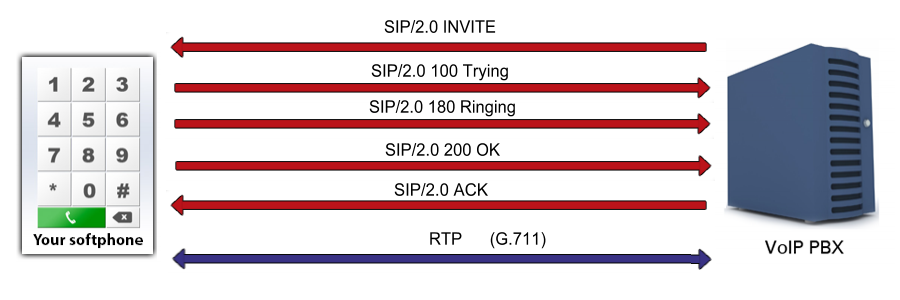
Figure 2 shows the time sequence of the calls that occur during the establishment of an incoming call. The three participants of the call is the caller, the VoIP PBX and the SDK that is called.
At first the caller, which is the remote softphone in Figure 2, sends an INVITE message to the PBX. The PBX returns a message that informs the caller about the PBX trying to establish a line between the caller and the Ozeki VoIP SIP SDK (message code 100) and at the same time it sends an INVITE message to the softphone.
The called SDK returns an info message about trying to establish the connection and if the line has been established, it sends a Ringing message back to the PBX. The ringing message (message code 180) is also returned to the caller softphone from the PBX.
When the called Ozeki VoIP SIP SDK answers the call (presses the Pick Up button), an OK message (message code 200) is sent to the PBX and it is forwarded from the PBX to the caller.
At this point the PBX gets out of the connection, and the caller softphone sends an acknowledge message (ACK) to the SDK directly to inform it about the established call. After this the two remote contacts can finally talk to each other.
Figure 2 - SIP Invite UML sequence diagram for an incoming call
VoIP or Internet communication can be effectively made by using software phones that provide you the voice calling function of analog phones with the extension of conference calls, multiple calls, video calling and audio and video messaging.
This article will give you a good introduction on the topics of accepting an incoming call with softphones and of recording a .wav audio file.
This example program is written in C# language in Visual Studio 2010 and uses the excellent support of the Ozeki VoIP SIP SDK. If you don't have these on your computer, make sure you downloaded and installed them before reading further.
This article is based upon some previous guides
This programming guide only contains the methods and solutions that handle incoming calls and .wav recording. For the other softphone functionalities you should visit the following pages:
- For all the basic concepts of an Ozeki C# softphone application check the Ozeki VoIP SIP Softphone page
- You can check softphone PBX registration details on the How to register to a SIP PBX page
- The basic concepts on voice call making and .wav playing are covered in How to make a Voice Call article
This page shows an example program for softphone using Ozeki VoIP SIP SDK. It assumes that you have seen the previously mentioned pages and will start with a partly operable application. The application GUI to start with is seen in Figure 3.
Figure 3 - Your softphone GUI should look like this before starting
At this point let's assume that your softphone application is capable of starting a voice call and playing .wav audio files.
Programming the incoming call acceptance will be really easy with the support of all the tools and methods of Ozeki VoIP SIP SDK. You will realize that the functions you want to add to your application can be basically made by calling some SDK provided methods.
You will need some tools for accepting a call
If you want to accept a softphone call you will need some essential devices and tools to be initiated (Code 1). The need for a speaker is totally understandable, as you want to hear the contact's speech. You will also need some special tools for receiving the voice stream and to connect the speaker to the receiver.
These tools are defined as classes in Ozeki VoIP SIP SDK and you will only need to make an instance of them and set the necessary parameters.
Speaker speaker = Speaker.GetDefaultDevice(); MediaConnector connector = new MediaConnector(); PhoneCallAudioReceiver mediaReceiver = new PhoneCallAudioReceiver(); bool inComingCall;
Code 1 - Ozeki VoIP SIP SDK provides the basic tools for handling an incoming call
After defining the necessary tools, you will need to handle the basic events that can occur during an incoming call.
How do you know that an incoming call request arrived?
Your softphone application has to be aware of the fact that an incoming call request arrived. Code 2 shows the method that sets the main parameters and signs up the essential events that may happen during the call.
In case of an incoming call the notification textbox will show the information about the incoming call and the source of it. The source will appear with the displayname parameter the caller has set during the registration procedure.
The softphone has to be signed up to the main events that show the change in the call state. It is essential as these events will specify for example, if the speaker or microphone will be up.
Setting the inComingCall logical variable true makes it possible to check if there is an incoming call request. The keypad functions will need this information as the example program uses the same Pick Up button for multiple functionalities.
private void softPhone_IncomingCall(object sender, VoIPEventArgs<IPhoneCall> e)
{
InvokeGUIThread(() =>
{
label1.Text = "Incoming call ";
textBox1.Text += String.Format("from {0}", e.Item.DialInfo);
call = e.Item;
WireUpCallEvents();
inComingCall = true;
});
}
Code 2 - Some basic settings and sign-ups are essential
After writing some helpful setting methods and EventHandlers, it is time to write the accept section.
Accepting an incoming call is a piece of cake with Ozeki VoIP SIP SDK
As Ozeki VoIP SIP SDK provides all the support for softphone solutions, accepting a call is a really easy task. You will need to put some extra lines into the method that handles the Click event of the Pick Up button.
Code 3 shows the code section that deals with the acceptance of an incoming call. The Ozeki VoIP SIP SDK grants the background actions and you only need to call the Accept() method of the call object and the SDK will do the rest for you.
The inComingCall flag must be set to false to make it possible for the softphone to accept more than one incoming calls. This example doesn't contain multiple call support, Ozeki VoIP SIP SDK provides the possibility of handling more than one calls simultaneously.
if (inComingCall)
{
inComingCall = false;
call.Accept();
return;
}
Code 3 - Ozeki VoIP SIP SDK grants the necessary support for accepting a call
At this point your softphone application is capable of accepting an incoming phone call from a remote computer. Now you have to make it possible to end the call too.
You also need to end a call in your softphone application
A started call has to be ended properly with hanging up the phone and stopping all the devices that were used during the call. The device handling has to be attached to the call state changing events to that the softphone was signed up at the beginning.
Code 4 shows the method that handles the Click event of the Hang Up button. This method ends the call if it exists or does nothing in case of no calls.
Ending a call should mean that you set the inComingCall flag false and you use the Ozeki VoIP SIP SDK provided method of the call object that is HangUp(). You will also need to set the call object to null and empty the notification textbox.
private void buttonHangUp_Click(object sender, EventArgs e)
{
if (call != null)
{
if (inComingCall && call.CallState==CallState.Ringing)
call.Reject();
else
call.HangUp();
inComingCall = false;
call = null;
}
textBox1.Text = string.Empty;
}
Code 4 - code caption
At this point your Ozeki VoIP SIP SDK supported softphone application is capable of accepting an incoming voice call and ending it properly. Your next task will be to write the methods that will record .wav audio files.
Ozeki VoIP SIP SDK has a great support for .wav audio playing and recording so programming the .wav recording will not take too much effort but calling some provided methods of the SDK.
Recording .wav will need some extra GUI elements
If you want to write the support of .wav recording, your GUI form will need some improvements to contain the necessary elements you will use.
The easiest way to distinguish the elements that are to perform a single functionality is if you use a GroupBox. You can set the Text property of the GroupBox on the Properties panel to reflect the functionality, in this case "Record .wav file" as it is seen on Figure 4.
When recording an audio file, you will need a textbox to specify the filename and
some buttons to start/pause and stop the recording or to save the file.
Recording a .wav mainly means to write the handlers for these buttons and the
textbox.
Figure 4 - After adding all elements for .wav recording, your GUI will look like this
When your GUI is ready for the support of .wav recording, you can start to write the functionalities behind the elements. As Ozeki VoIP SIP SDK provides all the functions needed, you will only have to call some methods and set some parameters, and your application will be able to record .wav files.
You will need a filename for your audio file
At this point you will need to add a filename to the program to be able to save the .wav file. The example does not start recording if there is no proper filename and path set.
In this example application you have to press the Save button to set a filename for your audio file. Code 5 shows the method that is called when the Click event of the Save button occurs.
The method will show a SaveFileDialog window that is an in-built tool in Windows Forms. You only have to set the file filter - this is .wav here - and you can add the filename and browse for the folder you want to save the file in.
This save dialog is a standard save dialog window that is used in every Windows applications, so you will find it useful and familiar.
The method also sets two Text properties. The textBoxPlaybackFile textbox has to be emptied to prevent file collision. This modification should also be done in the methods that handle audio playing. In that case the textBoxRecordingFile texbox has to set empty.
The last step of this method sets the textBoxRecordingFile textbox to the selected filename to indicate that the recorded .wav will be saves as that file.
private void buttonSave_Click(object sender, EventArgs e)
{
textBoxPlaybackFile.Text = string.Empty;
using (SaveFileDialog sfd = new SaveFileDialog() { Filter = "Wave Files (*.wav)|*.wav", FileName = textBoxRecordingFile.Text })
{
if (sfd.ShowDialog() == System.Windows.Forms.DialogResult.OK)
textBoxRecordingFile.Text = sfd.FileName;
}
}
Code 5 - You can use the standard Save dialog to specify the filename for your recorded .wav
After having a proper filename and path to save your audio file, you have to know the basic tool that will serve your interest of recording a .wav file.
The essential tool for recording an audio file is the WaveStreamRecorder
Ozeki VoIP SIP SDK contains a very useful tool, the WaveStreamRecorder class that provides all the methods and events that can be assosiated with .wav recording. You will only need to know and use this single tool to be able to perform an audio file recording.
The WaveStreamRecorder is a MediaHandler that can be connected to a microphone in order to record a voice stream. It can be initializes by only giving a filename for parameter, but you can also specify the file path, the stream it will record from and the actual wave format.
The WaveFormat is also a tool of Ozeki VoIP SIP SDK. You can parameterize it by giving the sample rate, the bitrate and the number of channels for the file.
This example only specifies the file path for the recorded audio and uses the default wave format that is (8 kHz, 16 bit, 1 channel).
Now you are familiar with the basic concept of the WaveStreamRecorder, you can start the programming part with some essential initializations.
First step is always about initializing
Code 6 contains the basic steps of initializing for the recoding method. If handles the case when there is no specified filename with a well-defined no operation. You can, of course, show a message box or write some other codes, but as for this example this solution will do.
You have to create the WaveStreamRecorder object with the parameter of the file path
specified by the Text property of the textBoxRecordingFile element.
The WaveStreamRecorder also has to be signed to the EventHandler of stopping. This method will
be shown later.
In order to record some voice, you will need to start the microphone with the Ozeki VoIP SIP SDK provided Start() method of the microphone object. The microphone also has to be connected to the WaveStreamRecorder to perform the recording.
The IsStreaming field of the WaveStreamRecorder has to be set to false in order to inform the application about the fact that there is no recoding yet.
if (WaveStreamRecorder == null)
{
if (string.IsNullOrEmpty(textBoxRecordingFile.Text))
return; // Select a file first
WaveStreamRecorder = new WaveStreamRecorder(textBoxRecordingFile.Text);
WaveStreamRecorder.Stopped += (WaveStreamRecorder_Stopped);
microphone.Start();
connector.Connect(microphone, WaveStreamRecorder);
WaveStreamRecorder.IsStreaming = false;
}
Code 6 - You will need to make some initialization steps first
After the main setting steps you will be able to write the program code for recording .wav audio files.
Ozeki VoIP SIP SDK provides you all support for recording
The recording function should be attached to the Start button of the Record .wav file groupbox. In order to perform this, you should double click on the Start button on the Design tab, and so the Visual Studio will take you to the generated method that handles the Click event of the Start button.
Code 7 shows the code segment that starts the recording. The audio recording will start if it is not in process and that is indicated with the IsStreaming flag.
As the Start button will perform the task of pausing the recording, after starting you have to modify the Text property of the button to Pause.
The information flag about streaming should also be set to true so as the application could act properly.
After setting all the necessary properties, you can start recording with the Ozeki VoIP SIP SDK provided StartStreaming() method of the WaveStreamRecorder object.
if (!WaveStreamRecorder.IsStreaming)
{
buttonStartRecording.Text = "Pause";
WaveStreamRecorder.IsStreaming = true;
WaveStreamRecorder.StartStreaming();
}
Code 7 - Ozeki VoIP SIP SDK provides support for starting recording a .wav
Starting the .wav recording is only the first step. You will need to pause or stop recording too. As the pause function is usually attached to the same button as the start function, it seems to be obvious to write that one first.
Pause function is usually on the same button as Start
Pausing a stream means that the recording stops but you can restart it and the later recorded audio information will be appended to the former audio file. This method is also provided by the Ozeki VoIP SIP SDK so you only have to call the PauseStreaming() method (Code 8).
When the recording is paused, the button has to get back the function of starting. For this purpose you will need to set the IsStreaming flag to false, and for informing the user about the function change you will also need to replace the buttonStartRecording text to Start.
buttonStartRecording.Text = "Start"; WaveStreamRecorder.PauseStreaming(); WaveStreamRecorder.IsStreaming = false;
Code 8 - Pausing a stream recording is as easy as starting one
The pausing function has to be put into the same EventHandler method that is attached to the Click event of the Start button. There is one more button to handle and you are almost ready.
What is once started needs to be stopped sometime
The last button to handle is the Stop button that performs the stopping of the stream recording. It also close the file and releases it so you will be able to play it.
Code 9 contains the EventHandler method for the Click event of the Stop button. It also handles the possible collision with the audio playing by emptying the textBoxPlaybackFile textbox.
This method stops the recording by calling the Ozeki VoIP SIP SDK provided StopStreaming() method of the WaveStreamRecorder object. It also disconnects the WaveStreamRecorder and the microphone and stops the microphone too.
Calling the Dispose() method of the WaveStreamRecorder object ensures that the recorded file will be released from the write lock and playing it will not cause a fatal error of file collision.
It is also essential to set the WaveStreamRecorder object to null and the Start button text to Start as after stopping the stream, you will need the start function again. You will not need to modify the IsStreaming false though, as for a null reference of a WaveStreamRecorder there is no such property.
private void buttonStopRecording_Click(object sender, EventArgs e)
{
textBoxPlaybackFile.Text = string.Empty;
WaveStreamRecorder.StopStreaming();
connector.Disconnect(microphone, WaveStreamRecorder);
microphone.Stop();
WaveStreamRecorder.Dispose();
WaveStreamRecorder = null;
buttonStartRecording.Text = "Start";
}
Code 9 - Stopping a stream recording means that you should cut all the lines
Now your application is nearly ready to record .wav files. Let's see what helping functions you will need to write before running the program.
You will need to be sure if the recording stopped
Code 10 shows you the only necessary EventHandler that you will need to define to be able to notify your application about stopping a stream recording.
This is a standard method and a regular EventHandler definition that you can copy and use in your program without modifications.
void WaveStreamRecorder_Stopped(object sender, EventArgs e)
{
if (RecorderStopped != null)
RecorderStopped(this, EventArgs.Empty);
}
public event EventHandler<EventArgs> RecorderStopped;
Code 10 - There is a need for notifying the program about stopping the stream recording
Now you have all the necessary knowledge to create a softphone application with the support of accepting an incoming call and recording a .wav audio file. If you followed this guide carefully you are now able to write your own, fully operable application.
Further development possibilities
This sample program is only for handling one telephone line. However, Ozeki VoIP SIP SDK offers the opportunity to develop and handle multiple telephone lines simultaneously. Moreover further functions can also be implemented effectively like call forwarding or chat function.
This article introduced you the basic concepts and possibilities of writing the methods for your softphone that support accepting an incoming call and recording .wav files with the extraordinary support of the Ozeki VoIP SIP SDK. Now you have all the necessary tools to write your own softphone solution and even improve it with the further exceptional tools provided by the Ozeki VoIP SIP SDK.
If you have any questions or need assistance, please contact us at info@voip-sip-sdk.com
You can select an Ozeki VoIP SIP SDK license for your project on How to buy page
Related Pages
- How to build a softphone
- Quick start guide
- Download Ozeki VoIP SIP SDK form the Ozeki VoIP SIP SDK download page
- For further examples using Ozeki VoIP SIP SDK, please visit the SIP voice applications
| Operating system: | Windows 8, Windows 7, Vista, 200x, XP |
| Development environment: | Visual Studio 2010 (Recommended), Visual Studio 2008, Visual Studio 2005 |
| Programming language: | C#.NET |
| Supported .NET framework: | .NET Framework 4.5, .NET Framework 4.0, .NET Framework 3.5 SP1 |
| Software development kit: | OZEKI VoIP SIP SDK (Download) |
| VoIP connection: | 1 SIP account |
| System memory: | 512 MB+ |
| Free disk space: | 100 MB+ |
INTERMEDIATE
VoIP technology walkthrough
Softphone development
Webphone development
Mobile development
Voice recording
GETTING AROUND
Sitemap
Search the manual
API documentation
FAQ
Appendix